Create Your Coat of Arms
Three to five words. Your name. A declaration — built for the field, not the living room wall. Choose your era, choose your form, name your arms. The prompt does the rest.
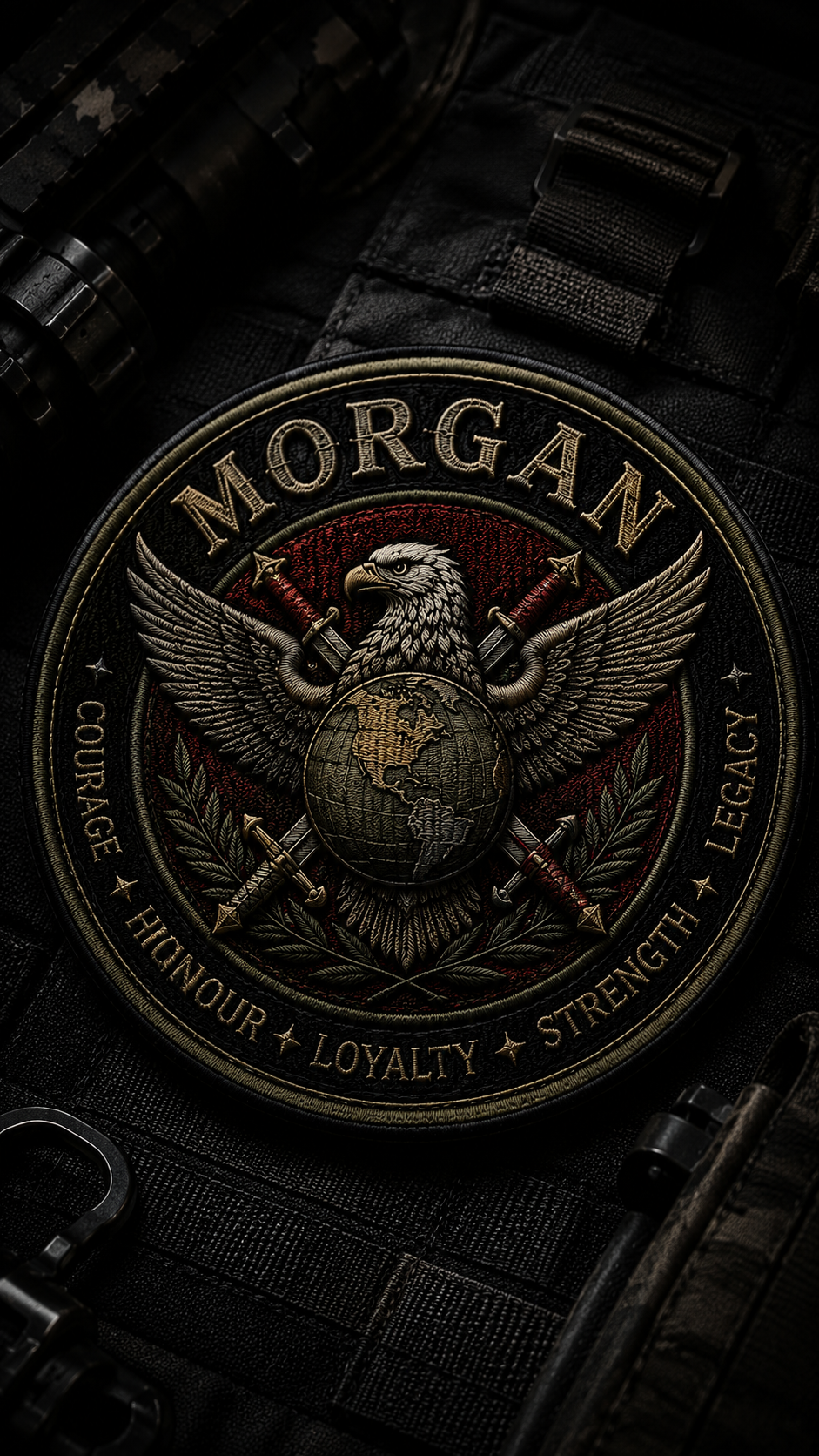
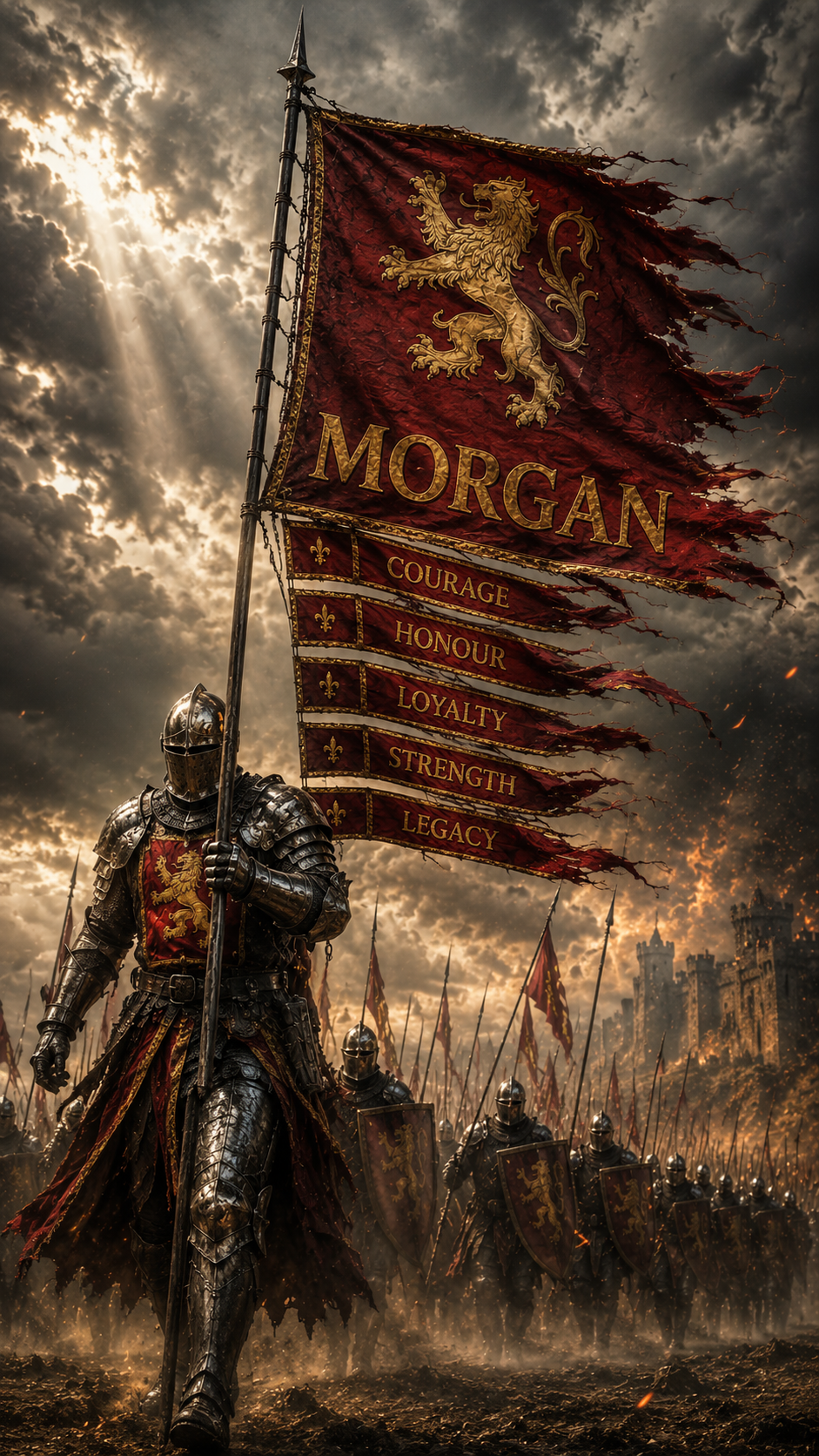
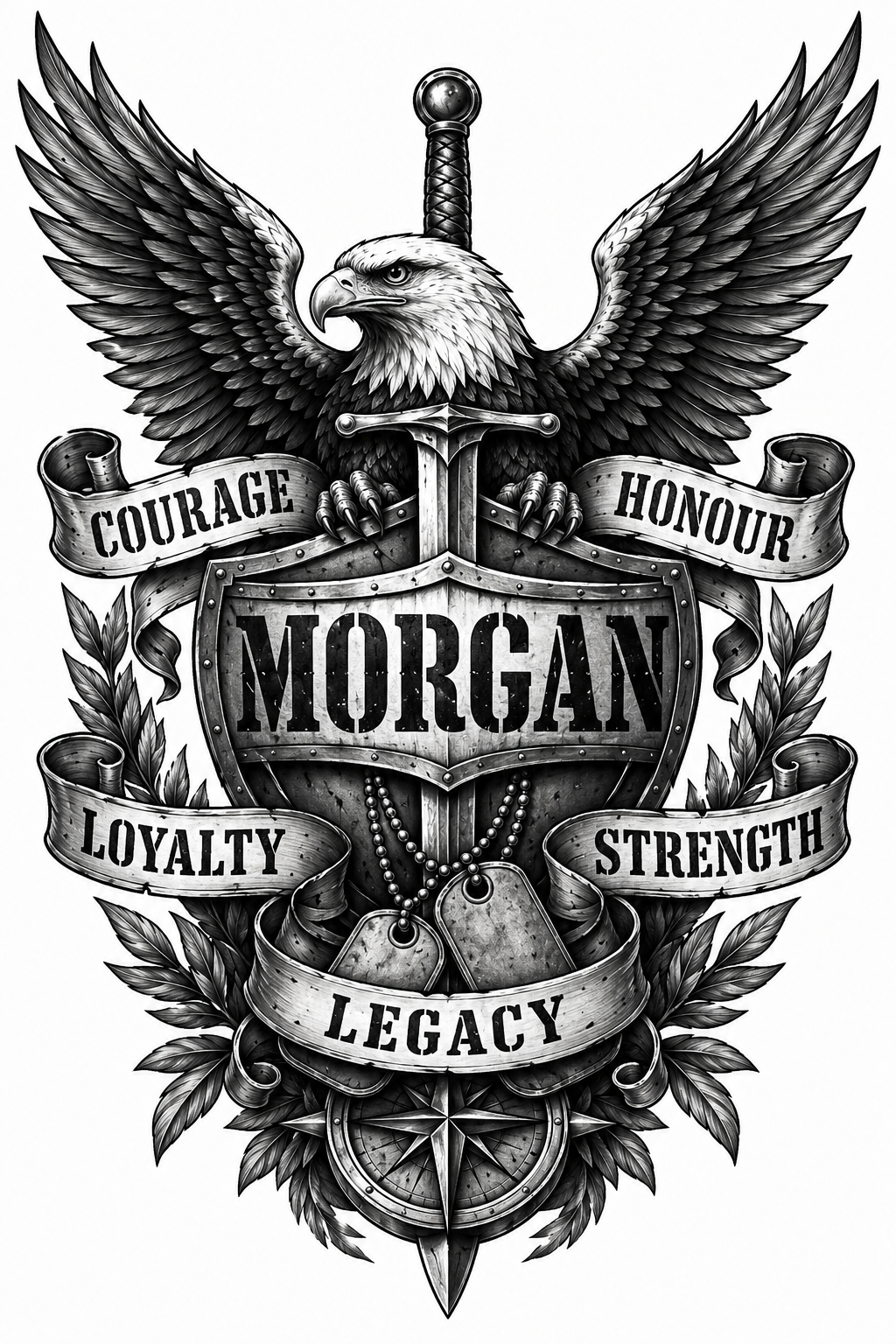
Special forces, desert and jungle. The mission brief at dawn.
Crusades, siege, stone and steel. The oath sworn before battle.
Fixed to stone. A crest, an emblem, a mark that outlasts the man.
Worn on the body. The most permanent declaration a man can make.
Carried into the fight. A flag, a standard, a declaration in motion.
Phone wallpaper. Lock screen or home screen. Bold and high contrast — always in your pocket.
Desktop or laptop screensaver. Wider composition built for a monitor.
Your AI Prompt
This process is less about the image and more about what choosing these words requires of you. The banner is a line in the sand — a way of making concrete how you intend to carry yourself as a man.
The image won't be perfect. That's fine. Regenerate until something resonates — in Gemini use the ↺ circular arrow, in ChatGPT just run it again. Edit the prompt if you want to push it in a different direction. It's a starting point, not a finished product.
- Your prompt is already copied — switch to your ChatGPT or Gemini tab and paste it in
- ChatGPT: click the image icon in the chat bar, paste your prompt, and send. Gemini: select Create image from the toolbar, paste, and send
- Not right? Regenerate — in Gemini hit the ↺ circular arrow, in ChatGPT just run it again. Edit the prompt directly if you want to push it in a different direction
- Save your image — iPhone: tap & hold the image → Save to Photos · Android: tap & hold → Save image · Desktop: right-click → Save image as